Add Class to Elements
Program Info
Program Code
×

Add Class to Elements

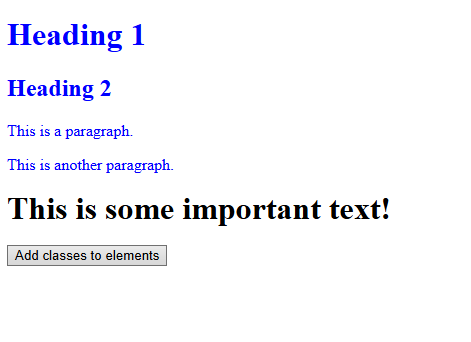
We are adding class to element to apply css on it.

Footer

×

Add Class to Elements

<!DOCTYPE html>
<html>
<head>
<script src="https://ajax.googleapis.com/ajax/libs/jquery/3.7.1/jquery.min.js"></script>
<script>
$(document).ready(function(){
  $("button").click(function(){
    $("h1, h2, p").addClass("blue");
    $("div").addClass("important");
  });
});
</script>
<style>
.important {
  font-weight: bold;
  font-size: xx-large;
}

.blue {
  color: blue;
}
</style>
</head>
<body>

<h1>Heading 1</h1>
<h2>Heading 2</h2>

<p>This is a paragraph.</p>
<p>This is another paragraph.</p>

<div>This is some important text!</div><br>

<button>Add classes to elements</button>

</body>
</html>

Footer

Attach a Click Event to Element
Program Info
Program Code
×

Attach a Click Event to Element

We attaching a click event to element. when user click on paragraph element then it will hide.

Footer

×

Attach a Click Event to Element

<!DOCTYPE html>
<html>
<head>
<script src="https://ajax.googleapis.com/ajax/libs/jquery/3.7.1/jquery.min.js"></script>
<script>
$(document).ready(function(){
  $("p").on("click", function(){
    $(this).hide();
  });
});
</script>
</head>
<body>

<p>If you click on me, I will disappear.</p>
<p>Click me away!</p>
<p>Click me too!</p>

</body>
</html>

Footer

Attaches an Focus and Blur Event to an HTML Form Field
Program Info
Program Code
×

Attaches an Focus and Blur Event to an HTML Form Field

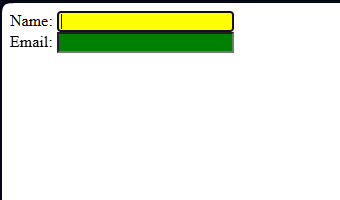
We attaching an focus and blur event to an HTML form field. when user click on first input field then it will have yellow background color and when user click outside the input field then it will have green background color.

Footer

×

Attaches an Focus and Blur Event to an HTML Form Field
<!DOCTYPE html>
<html>
<head>
<script src="https://ajax.googleapis.com/ajax/libs/jquery/3.7.1/jquery.min.js"></script>
<script>
$(document).ready(function(){
  $("input").focus(function(){
    $(this).css("background-color", "yellow");
  });
  $("input").blur(function(){
    $(this).css("background-color", "green");
  });
});
</script>
</head>
<body>

Name: <input type="text" name="fullname"><br>
Email: <input type="text" name="email">

</body>
</html>

Footer

Class Selector
Program Info
Program Code
×

Class Selector

We using a class selector. when user click on button then element that have class as test will hide.

Footer

×

Class Selector

<!DOCTYPE html>
<html>
<head>
<script src="https://ajax.googleapis.com/ajax/libs/jquery/3.7.1/jquery.min.js"></script>
<script>
$(document).ready(function(){
  $("button").click(function(){
    $(".test").hide();
  });
});
</script>
</head>
<body>

<h2 class="test">This is a heading</h2>

<p class="test">This is a paragraph.</p>
<p>This is another paragraph.</p>

<button>Click me</button>

</body>
</html>

Footer

Filter Lists
Program Info
Program Code
×

Filter Lists

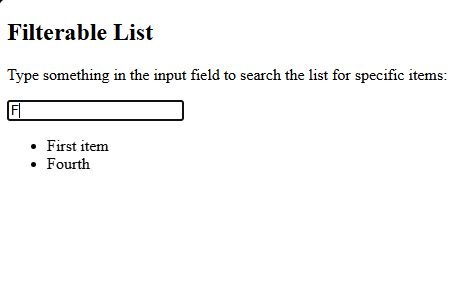
We are doing filter lists. user can search item in list.

Footer

×

Filter Lists

<!DOCTYPE html>
<html>
<head>
<script src="https://ajax.googleapis.com/ajax/libs/jquery/3.7.1/jquery.min.js"></script>
<script>
$(document).ready(function(){
  $("#myInput").on("keyup", function() {
    var value = $(this).val().toLowerCase();
    $("#myList li").filter(function() {
      $(this).toggle($(this).text().toLowerCase().indexOf(value) > -1)
    });
  });
});
</script>
</head>
<body>

<h2>Filterable List</h2>
<p>Type something in the input field to search the list for specific items:</p>  
<input id="myInput" type="text" placeholder="Search..">
<br>

<ul id="myList">
  <li>First item</li>
  <li>Second item</li>
  <li>Third item</li>
  <li>Fourth</li>
</ul>
  
</body>
</html>

Footer

Id Selector
Program Info
Program Code
×

Id Selector

We are using id selector. when user click on button then element that have id as test will hide.

Footer

×

Id Selector

<!DOCTYPE html>
<html>
<head>
<script src="https://ajax.googleapis.com/ajax/libs/jquery/3.7.1/jquery.min.js"></script>
<script>
$(document).ready(function(){
  $("button").click(function(){
    $("#test").hide();
  });
});
</script>
</head>
<body>

<h2>This is a heading</h2>

<p>This is a paragraph.</p>
<p id="test">This is another paragraph.</p>

<button>Click me</button>

</body>
</html>

Footer


×

Name : Krishna Verma    |    Father's Name : Mr. Satish Kumar    |    Email ID : krishnaverma28081997@gmail.com    |    Religion : Hindu    |    Address : Dayampur, kanker khera, Meerut Cantt (250001), UP    |    Date of Birth : 28 August 1997    |    Marital Status : Non-Married    |    Place of Birth : Dayampur Kanker Khera Meerut Cantt.    |    Gender : Male    |    Age : 28    |    Contact : 9520335394    |    Father's Occupation : Sports man    |    Mother's Name : Smt. Kuntesh Devi    |    Mother's Occupation : Homemaker    |    Number of Brothers : 1    |    Number of Sisters : 1    |    Current Residence : Dayampur kanker khera meerut cantt    |    Family Type : Nuclear Family    |    Family Name : verma    |    Height : 5' 6''    |    Weight : 70 kg    |    Complexion : Fair    |    Body Type : Athletic    |    Hair Color : Black    |    Health Status : Good    |    Any Physical Disability : No    |    Highest Qualification : B.Tech (CSE)    |    Master Skill : PHP Laravel    |    Total Projects : 40 +    |    Total Skills : 25 +    |    Languages Known : Hindi and English    |    Website : krishnaportfolio.in    |    Siblings : 3    |    Nationality : Indian    |    Total Experience : 5 Years    |    LinkedIn : https://www.linkedin.com/in/krishna-verma-840b71356/    |    Total Programs : 10000    |    Total Projects : 40    |    Total Skills : 25    |    Total Experience : 5    |    Total DSA Problems : 165    |    Total Served Companies : 2